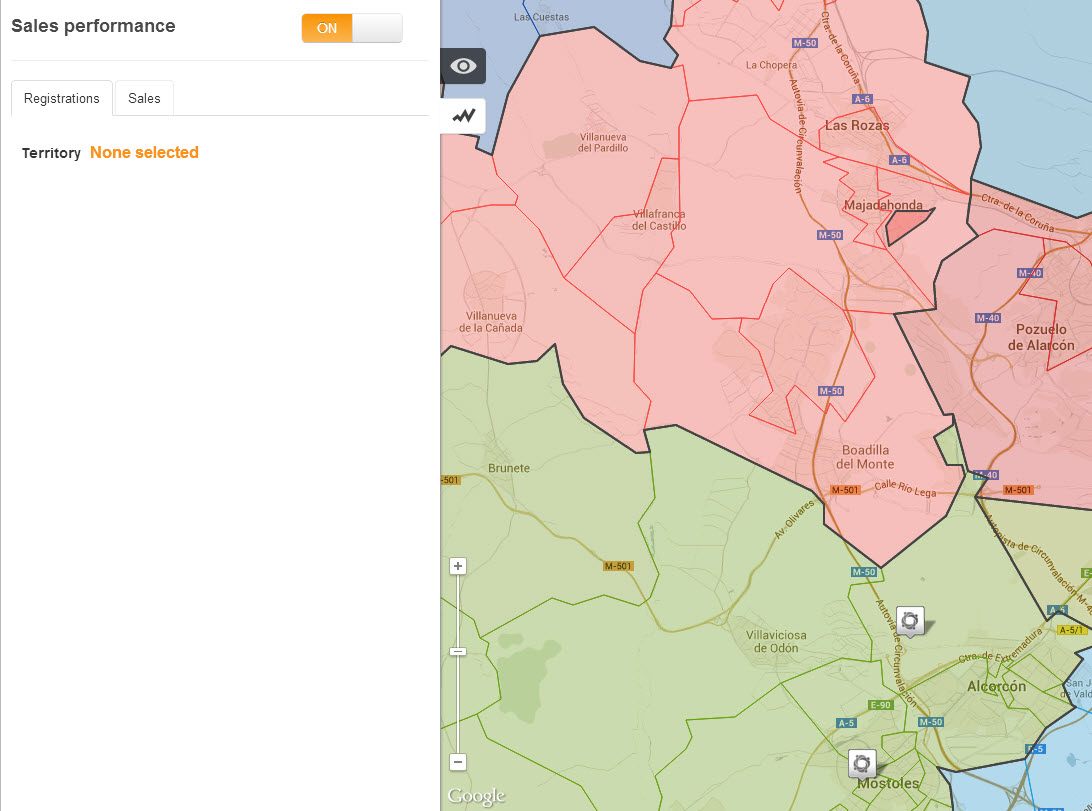
Sales Performance is available from the left hand panel. You can access it by clicking on the performance tab

.
Once you have opened the panel, switch on using the on/off button. Default territories will automatically load and display on the map.
Note that there are two tabs within the panel, one called Registrations and one called Sales.
Registrations
This option will show brand performance fo ryou and your competitors in any territory that you select
Sales
This option will show outlet or dealer performance for any outlet / dealer that you select on the map
Select a territory by clicking on it on the map. (you can select more than one territory by pressing the shift key and clicking on another territory)
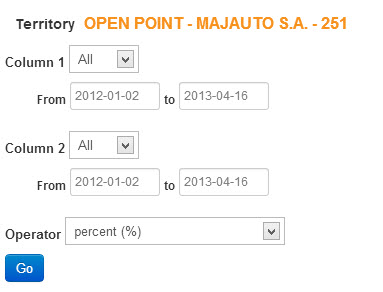
You now have access to the data picker in the panel. This allows you to select the sales data that you want. Above the panel, you can see the name of the territory selected in orange text.
You have the choice to select data for three columns.
Column 1 - select the sales data and sub options that you want
Column 2- repeat the same for column 2 if you want to populate this column
Operator - the operator goes into column 3. You can use a number of options with this:
a) add (+) - this will add the values in column 1 and 2
b) subtract (-) - this will subtract the values in column 2 from column 1
c) percent (%) - this will calculate the percentage of values in column 1 as a percentage of the values in column 2
Once you have selected your data, click on the 'go' button.
Sales Table
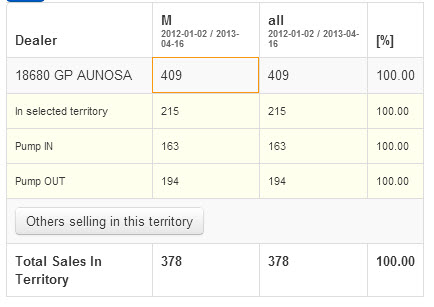
If you have selected the sales tab, you will see the sales table displaying the data that you have selected. This will show the sales for the selected dealer. The segments that you selected will be shown at the top of each column, and the operator you selected will also be shown.
You can see that the sales for the selected outlet are displayed in the table. It shows total sales, in territory and pump in pump out.
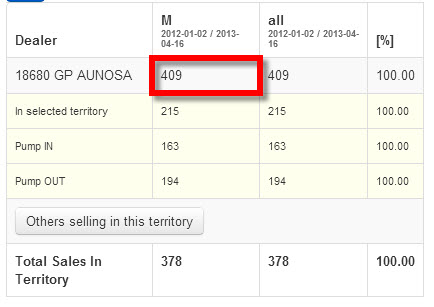
Now click in the total sales cell for the outlet (see below). The sales for this outlet will be shaded on the map.
Try selecting other territories to see what the sales data shows for these. You can also expand the table to show 'others selling in this territory' This will show all the other outlets and the sales that they made into this territory
 Network Toolkit User Guide