You can select one or more scenarios in the scenario list by clicking on the check box to the left of each scenario name. Once you have selected one or more scenarios, there is a range of options available for your selection, such as copying, deleting, listing and comparing outlet lists and creating reports.
 Copy scenario
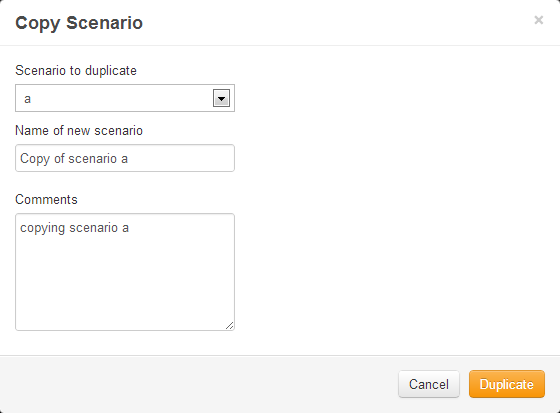
This button will only get active, if you select a single scenario. When clicked, the scenario copy dialog box (see below) will appear with an input for the new scenario name and description (comments). The scenario that you select to be copied will already be available in the option, but you can select another scenario to be copied at this stage if required.
 Delete one or more scenarios
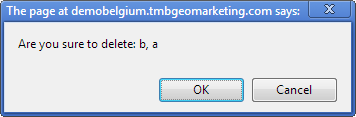
This button allows you to delete one or more scenarios. In addition to the delete button  in each scenario row, a multiple delete button allows you to select more than one scenario to be deleted. Before deleting, a confirmation message box will require a confirmation from the user.
If any of the scenarios are used in the report, you will be warned that the corresponding reports and scenarios will be deleted:
 Generate Report
As well as being able to create reports in the report manager, this button provides a short-cut to report creation. Select one or two scenarios and click this button. The report wizard dialog box will appear with the scenarios already selected. Complete the rest of the details to finish creating the reports (see more on the report wizard).
 Network Toolkit User Guide