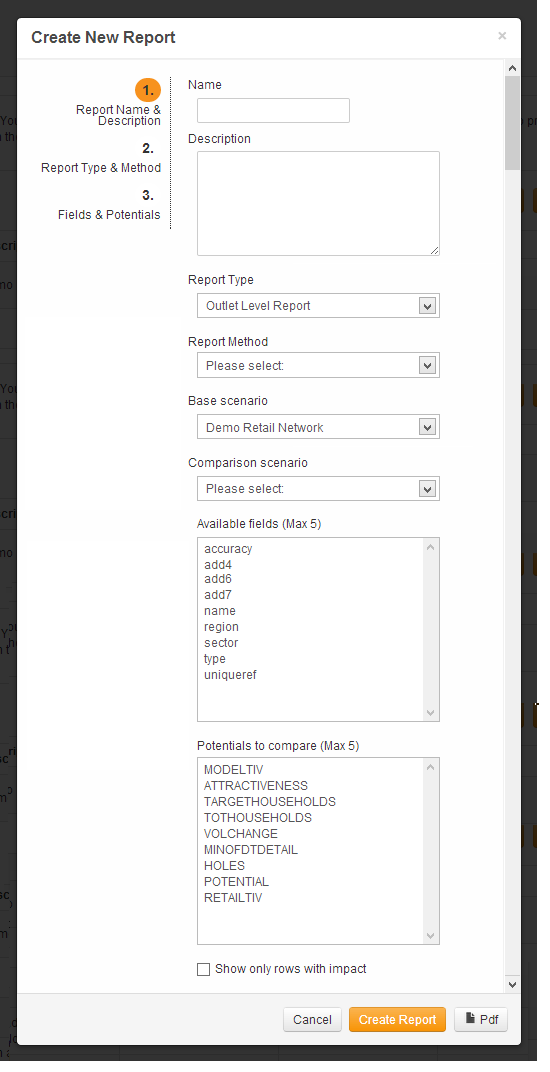
The Report Wizard can be started from the Scenario Manager or from the Reports Manager.
This section provides a more detailed step-by-step guide to the input fields required for the Report Wizard.
a. Enter a name and description for your report.
c. Report Method: Select either
SIM (or Spatial Interaction Model) or Territory method. The SIM method will allocate potentials to outlets using a gravity or spatial interaction model. The territory method uses a much more simple approach by simply allocating all the potential within a territory structure to the incumbent outlet.
d. Base Scenario: select the
base scenario If you are creating reports from the scenario manager list, then this option will already be selected for you.
e. Comparison Scenario: select the comparison scenario. If you are creating reports from the scenario manager list, then this option will already be selected for you.
f. Available Fields: The unique ID and name of the outlet will already have been chosen as these are the minimum fields that need to be shown for a report. Please select any other fields that you wish to be present in the report.
g. Potentials to compare: You can select up to 5 potentials.
There is an option at the end of the Report Wizard input box to create a PDF version of the report.
 Network Toolkit User Guide